
Export LinkedIn Company Page Data to Google Sheets
Automatically save LinkedIn company page data into Google Sheets with one click. No scraping tools, no CSV exports, no manual copy-paste.
Manually Copying LinkedIn Company Data Is Time-Consuming
Copying company name, website, industry, headcount, then pasting into a sheet and repeating for 100+ companies, eats hours. Many users search for a way to export LinkedIn company data to Google Sheets without using complex scraping tools.
- 1. Copying company name
- 2. Copying website
- 3. Copying industry
- 4. Copying headcount
- 5. Repeating for 100+ companies
What LinkedIn Company Data Can You Save?
Extract LinkedIn company data and map it to your sheet. Our platform lets you export LinkedIn data to Google Sheets in one click. Fields you can save include:
- • Company name
- • Industry
- • Website
- • Headcount
- • Headquarters
- • Company URL
- • Description
- • Followers
How to Export LinkedIn Company Data to Google Sheets
- 1Connect your Google account
Sign in with Google in the SyncToSheet dashboard and pick the spreadsheet you want to use.
- 2Create a company automation
Choose a sheet and tab, then select company sync and map company data fields to your columns.
- 3Install Chrome extension
Add the SyncToSheet's LinkedIn Chrome extension from the Chrome Web Store. It runs only on linkedin.com.
- 4Visit any LinkedIn company page
Open the company page you want to save in your browser.
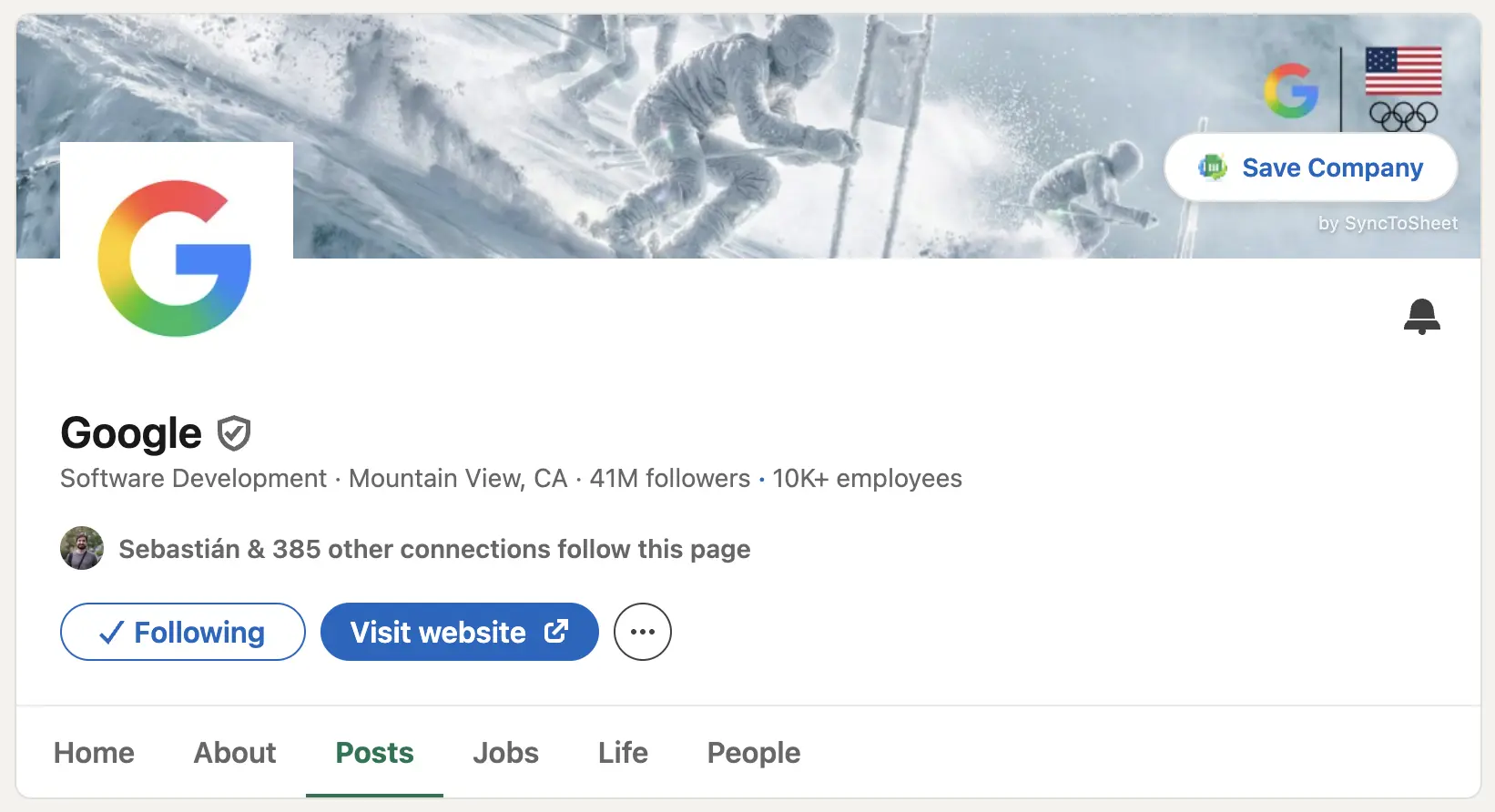
- 5Click “Save Company”
Data syncs automatically to your selected Google Sheet. No CSV uploads or manual paste.
Who Uses LinkedIn Company Data Export?
B2B sales teams
Build target account lists in Google Sheets without manual data entry.
Lead generation agencies
Create company prospect lists and manage LinkedIn leads in Google Sheets fast for clients.
Recruiters
Track hiring companies and employer research in one sheet.
Market researchers
Collect company intelligence for reports and analysis.
Why Not Use a LinkedIn Company Scraper?
A LinkedIn company scraper often needs infrastructure, proxies, or export steps. With SyncToSheet you get direct Google Sheets sync, no scraping servers, no CSV uploads.
- No scraping infrastructure, connect Google, create an automation, install the extension.
- No proxies, the extension runs only when you click on a company page.
- No data exports or CSV uploads, rows go straight into your sheet.
- Direct Google Sheets sync, ideal if you want a LinkedIn company scraper to Google Sheets alternative that’s one-click and simple.
Frequently asked questions
- Can I export LinkedIn company followers?
- Yes. Depending on the fields you map in your company automation, you can capture company, level data visible on the LinkedIn company page. Map the columns you need in the SyncToSheet dashboard, then click Save Company on any company page to sync data, including available metrics, to your sheet.
- Does this work without Sales Navigator?
- Yes. The extension works with standard LinkedIn company pages. You do not need LinkedIn Sales Navigator to save company data to Google Sheets. Open any company page on linkedin.com, click Save Company, and the data syncs to your chosen sheet.
- Is this a LinkedIn scraping tool?
- SyncToSheet is not a traditional scraper. You visit a LinkedIn company page and click once to save that page’s data to Google Sheets. There is no background scraping, no proxies, and no bulk crawling, just one click to export from the company page you’re viewing.
- Can I automatically sync company data?
- Yes. After you create a company automation and install the Chrome extension, each time you click “Save Company” on a LinkedIn company page the data is sent to your selected Google Sheet and tab immediately. No CSV upload or manual paste, one click and the row appears in your sheet.
- Can I map company data to custom sheet columns?
- Yes. In the SyncToSheet dashboard you create a company sync automation and map each LinkedIn company field (e.g. company name, industry, website, headcount) to the column you want in your Google Sheet. You control the layout so it fits your CRM, lists, or reports.