
On this page
How to Export LinkedIn Profiles to Google Sheets
Step-by-step tutorial to export LinkedIn profiles and company data to Google Sheets automatically, no manual copy-paste.
Why export LinkedIn to Google Sheets?
Manually copying LinkedIn profiles to spreadsheets is slow and repetitive. Many users look for a way to export LinkedIn profiles to Google Sheets automatically. This guide shows you how to do it with a Chrome extension and a simple automation: no scraping, no CSV files.
You'll connect Google, create an automation that maps LinkedIn data to your sheet columns, install the extension, and then save profiles or company pages with one click. Data syncs directly to your chosen Google Sheet.
What you need before starting
Keep it simple: a Google account (for Sheets), Chrome browser, a LinkedIn account, and a SyncToSheet account. Create a free account at the app: sign in with email, Google, or GitHub.
- • Google account: to create and own the spreadsheet
- • Chrome browser: for the extension
- • LinkedIn account: to view profiles and company pages
- • SyncToSheet account: to create automations and sync
Back to homepage if you want more context first.
Step 1 – Connect Google account
Go to Google accounts in the left menu and click Connect Google account. You'll go through Google's OAuth flow: sign in to Google (if needed) and grant SyncToSheet access to the spreadsheets you choose. We only write data to the sheets you connect; we don't read your email or other files.
Step 2 – Create automation & map fields
Go to Automations and click Create automation. You'll select your sheet, choose profile or company mode, and map LinkedIn data to your columns, so you get a LinkedIn lead tracking spreadsheet that fits your workflow. You'll go through:
- 1
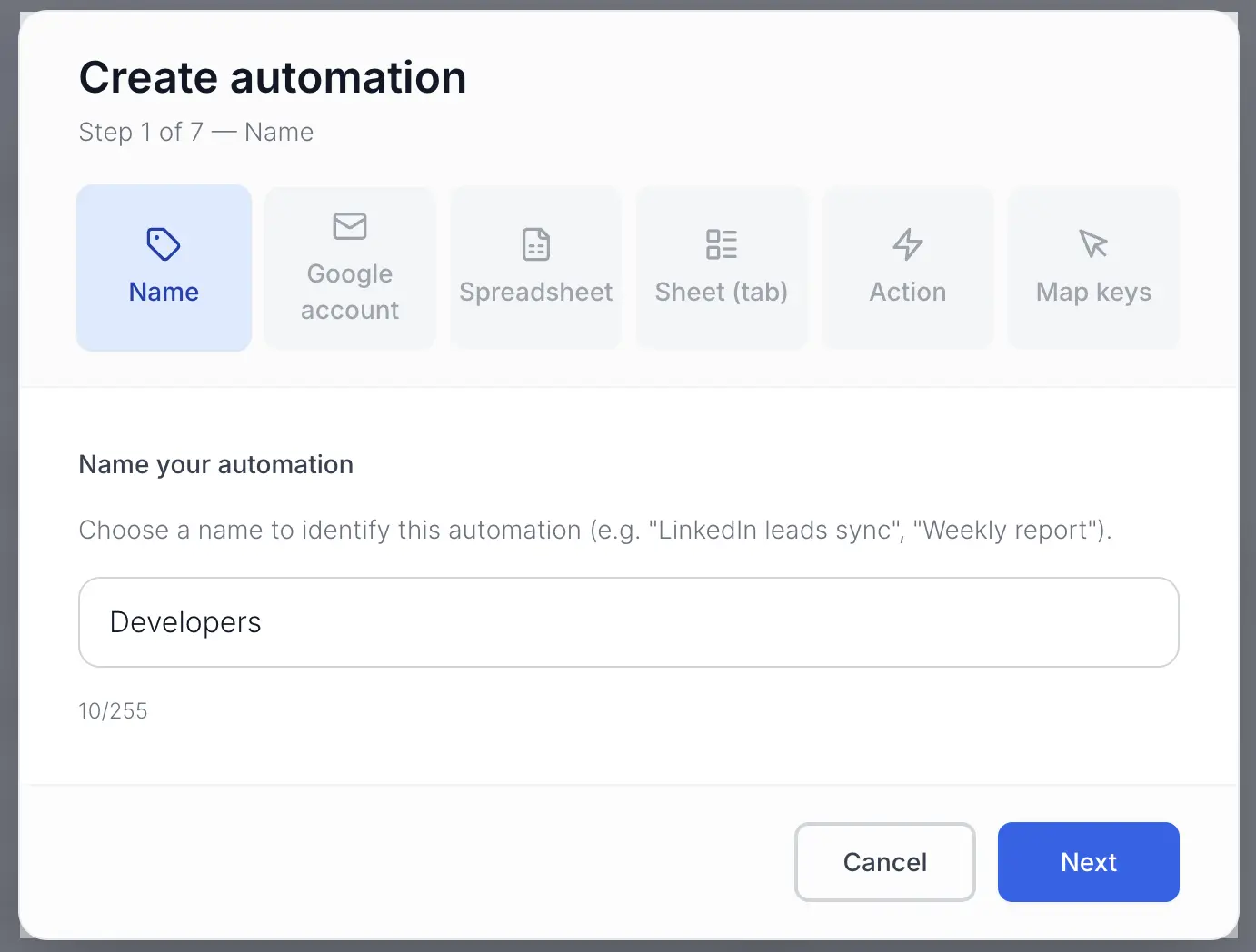
Name
Give your automation a clear name (e.g. "LinkedIn leads to Sheet").
- 2
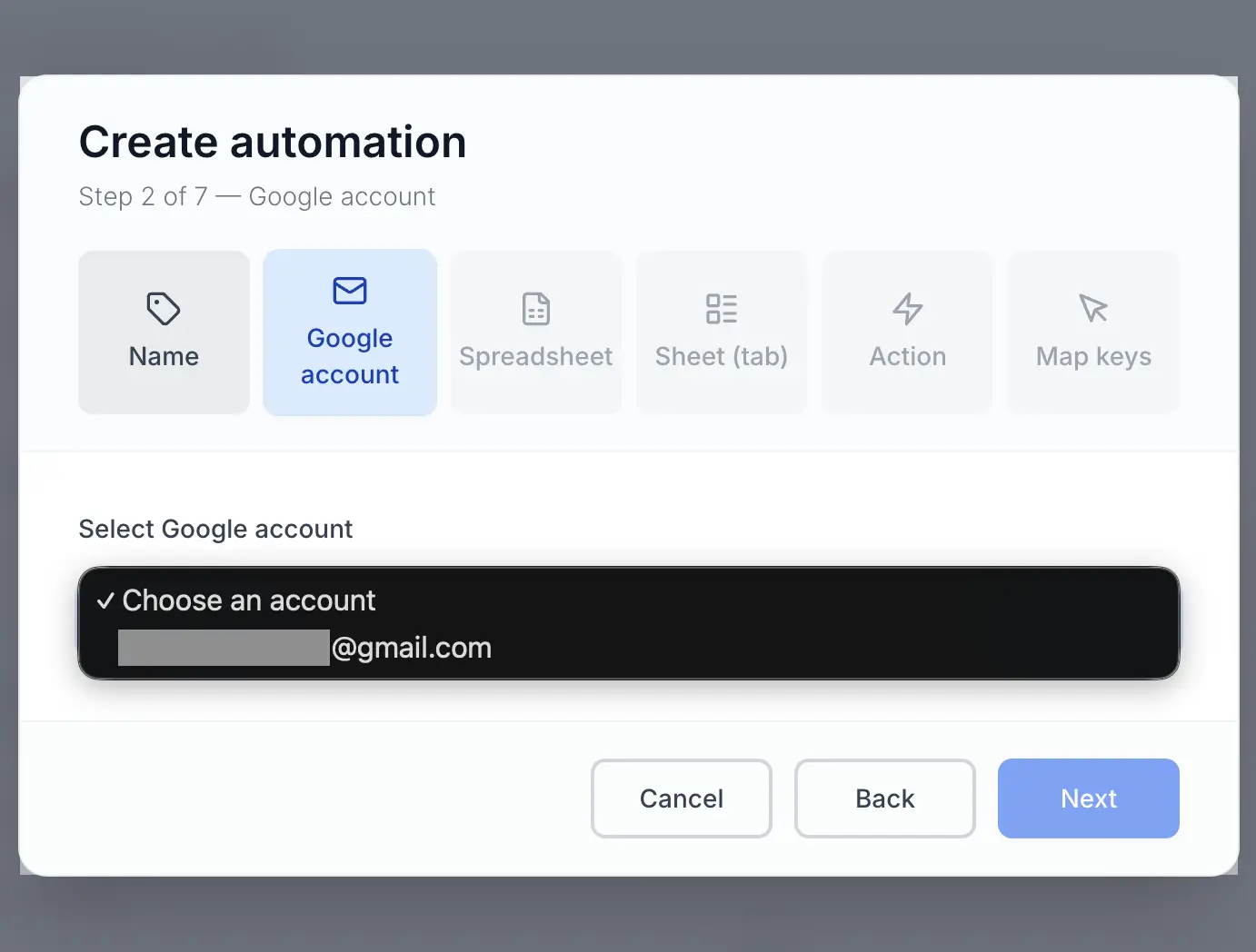
Google account
Choose which connected Google account owns the spreadsheet.
- 3
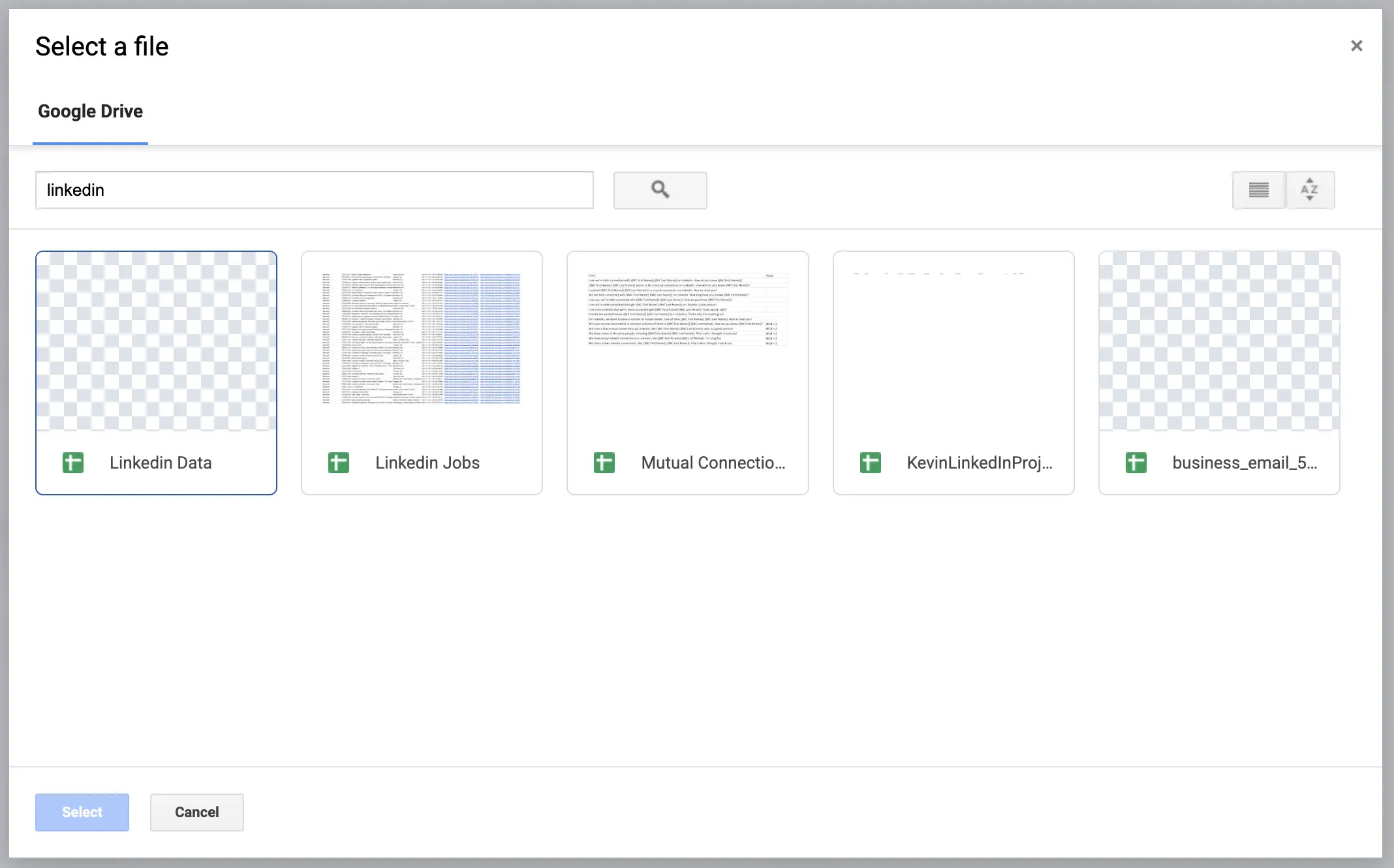
Spreadsheet
Pick a Google Sheet from Drive or create a new one.
- 4
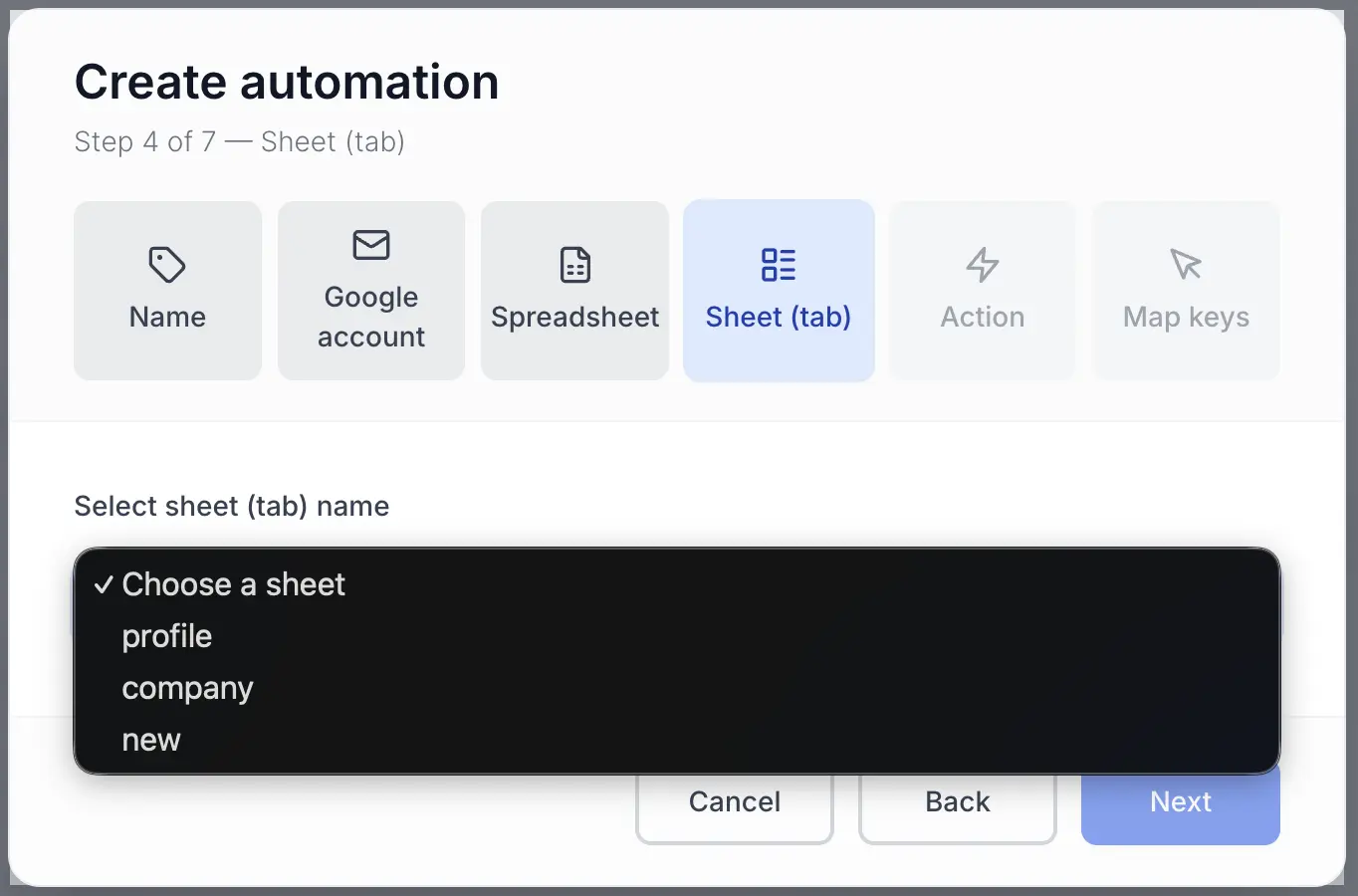
Sheet (tab)
Select which tab inside the spreadsheet to write data to.
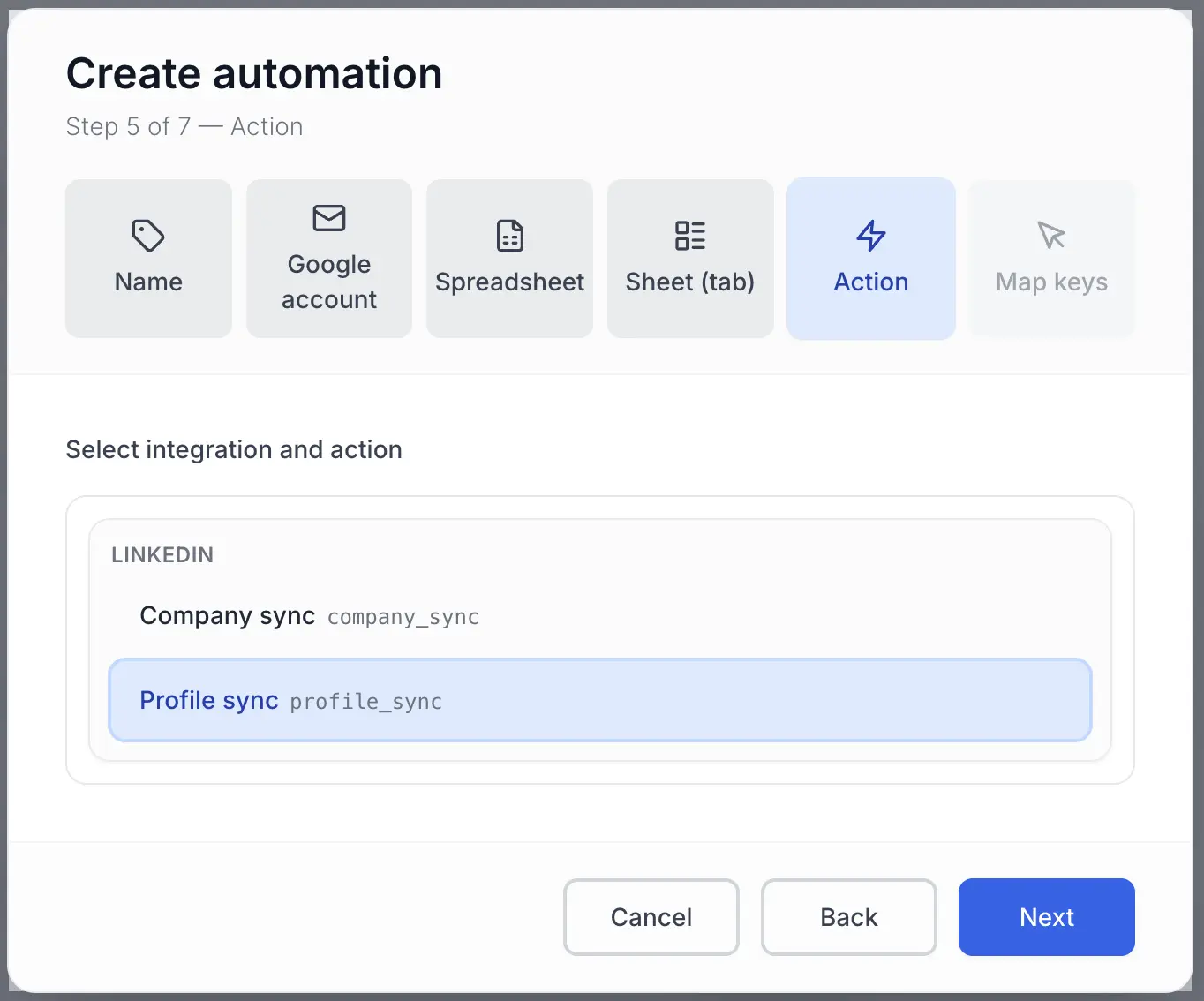
- 5
Action
Choose "Profile sync" or "Company sync" depending on what you want to save.
- 6
Map keys
Match the data fields (e.g. name, headline) to columns in your sheet.
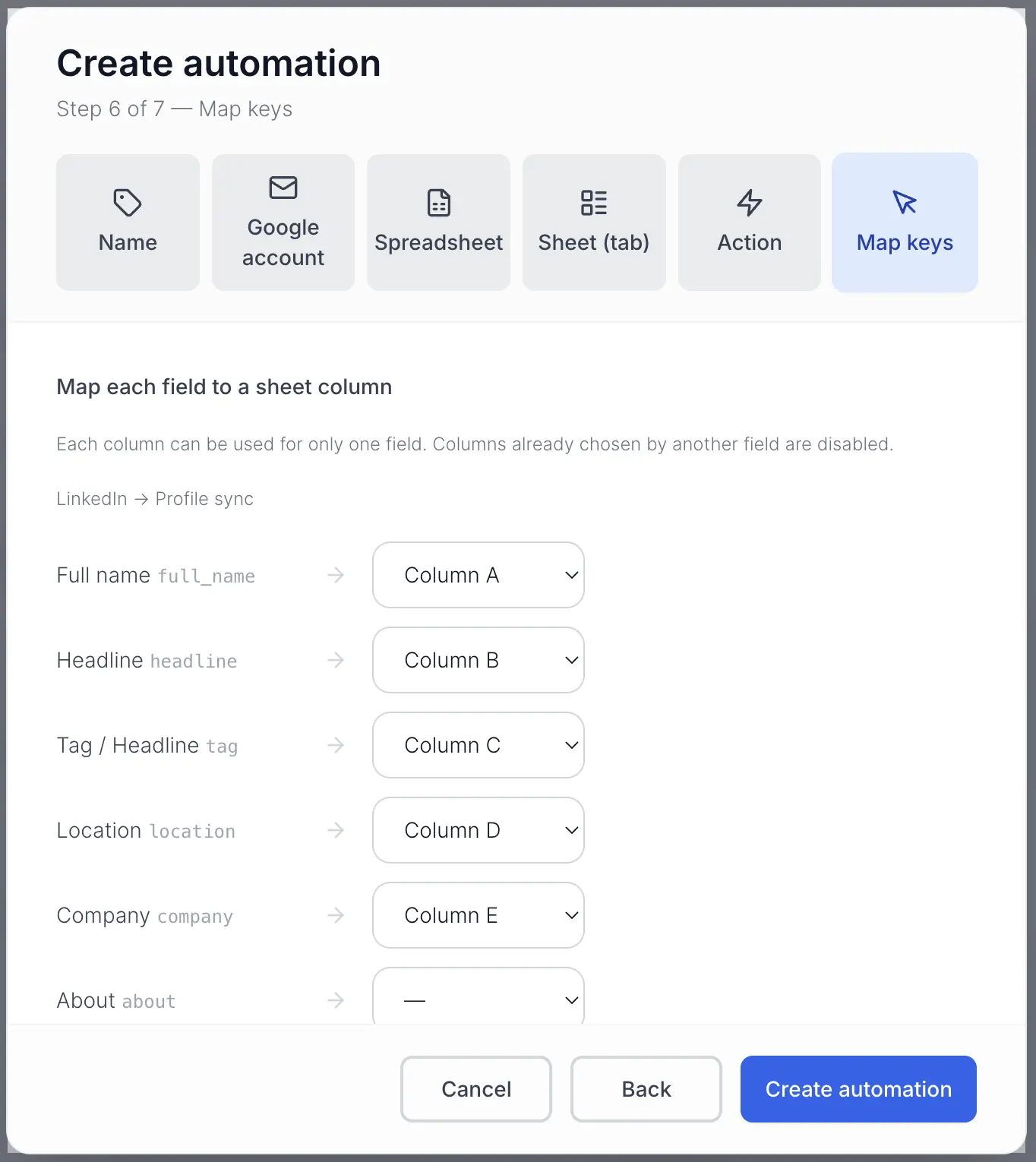
When you're done, the automation appears in your list. Turn it on so it shows up in the Chrome extension. You've just set up how to map LinkedIn data to Google Sheets for this automation.
Go to AutomationsStep 3 – Install the Chrome extension
Install the SyncToSheet LinkedIn Chrome extension from the Chrome Web Store. Once installed, you'll see the SyncToSheet icon in your browser toolbar. Click it and sign in with your SyncToSheet account so the extension can see your automations.
Add to Chrome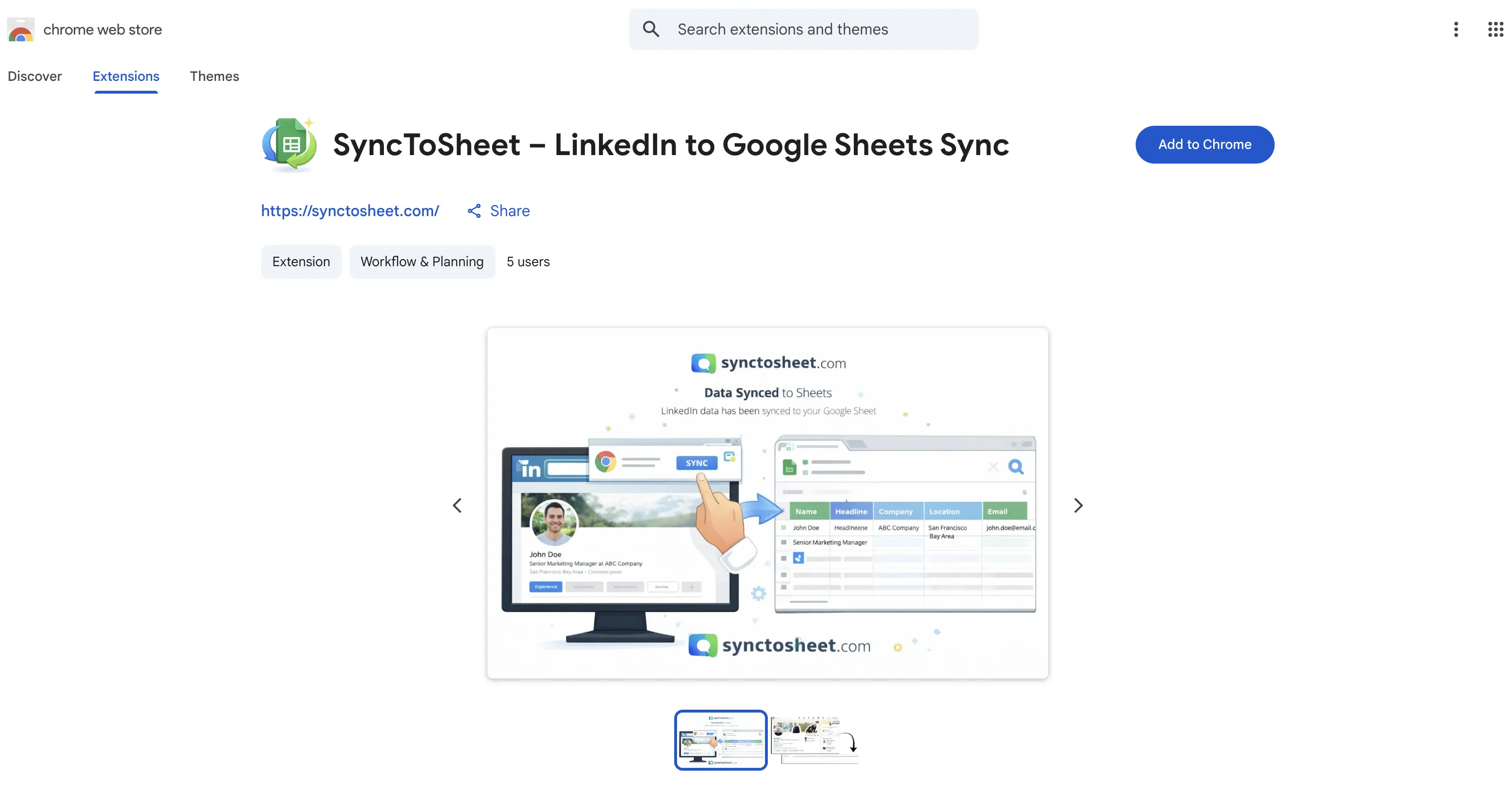
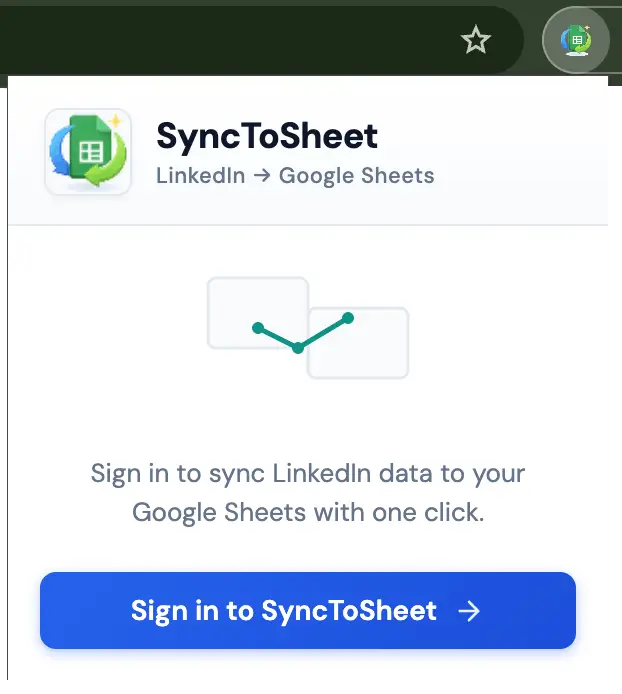
The extension only runs on LinkedIn profile or company pages. It does not run in the background or collect data without your click.
Step 4 – Save profiles or company pages
Visit a LinkedIn profile or company page, set a default automation in the extension popup (Profile and/or Company), then click Save profile or Save company. Data syncs automatically to your selected Google Sheet. Your LinkedIn to Google Sheets automation in action.
After signing in, the extension popup lists your active automations. You can:
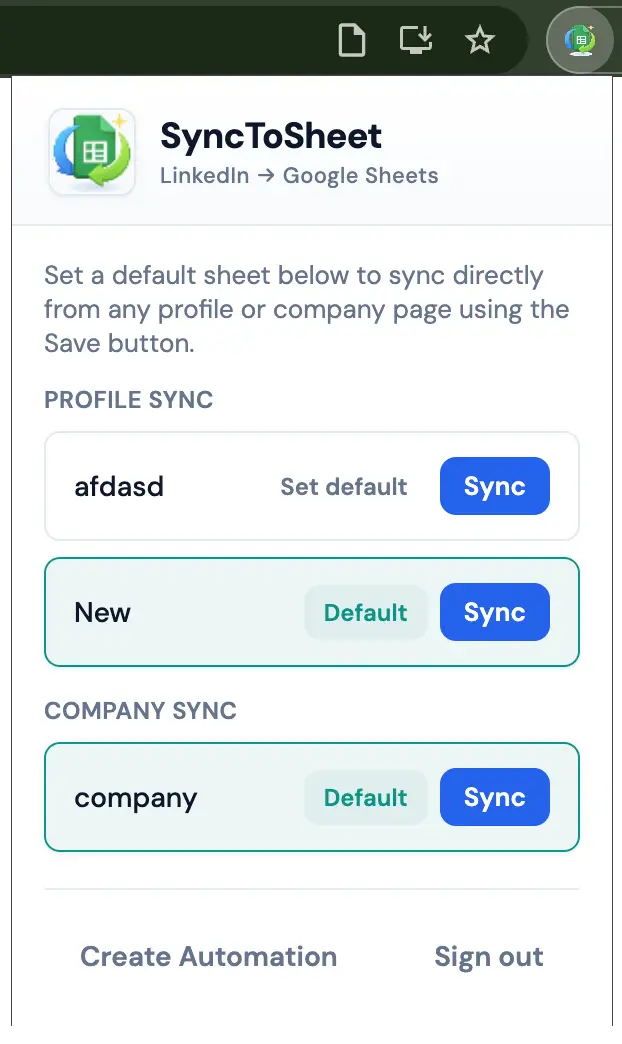
- Set a default for Profile: Choose which automation runs when you click "Save profile" on a LinkedIn profile page.
- Set a default for Company: Choose which automation runs when you click "Save company" on a LinkedIn company page.
- Save profile: On a profile page (
linkedin.com/in/username), click the SyncToSheet button to send that profile's visible data to your default profile automation's sheet.
Save profile on a LinkedIn profile page - Save company: On a company page (
linkedin.com/company/slug), click the button to send that company's visible data to your default company automation's sheet.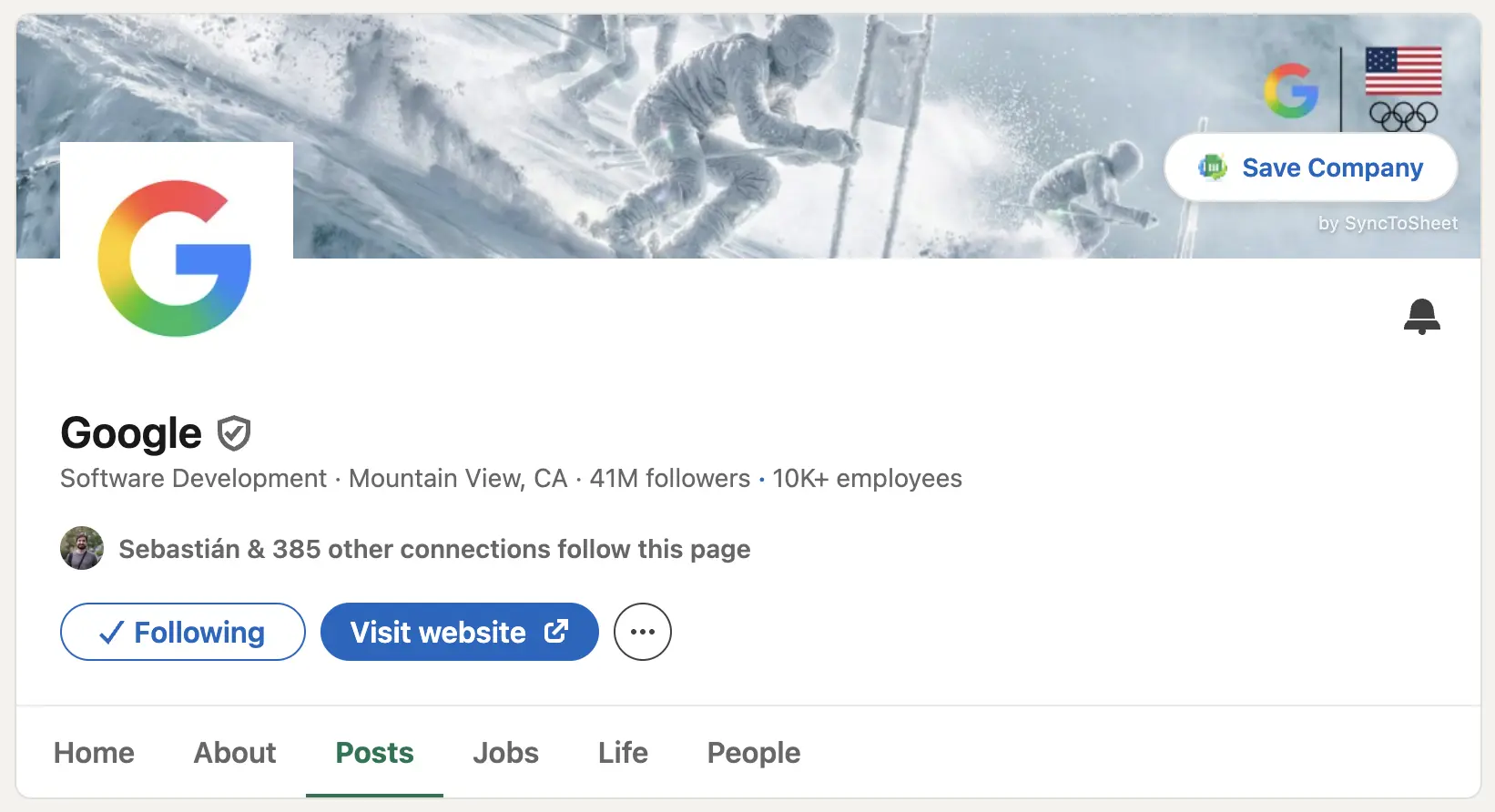
Save company on a LinkedIn company page
You must set a default (profile and/or company) in the popup before the Save button will work. Use Create Automation in the popup to open the dashboard and add more automations.
Optional – Export company pages
You can also export LinkedIn company data to Google Sheets. Create a Company sync automation, then use the extension on any LinkedIn company page and click Save company. For a full walkthrough, see how to export LinkedIn company data to Google Sheets.
Frequently asked questions
- Can I export LinkedIn company data?
- Yes. Create a company sync automation in the dashboard, then use the Chrome extension on any LinkedIn company page. Company name, industry, website, headcount, and more sync directly to your sheet. See the Export company data page for a full walkthrough.
- Does this require Sales Navigator?
- No. You can export LinkedIn profiles and company data to Google Sheets using standard LinkedIn. Sales Navigator is not required. The extension works on regular profile and company pages.
- Is this a LinkedIn scraper?
- No. SyncToSheet is not a scraper. You click Save on the profile or company page you're viewing, and that page's data is sent to your Google Sheet. There's no bulk scraping or background crawling; just one-click capture while you browse.
- Can I automate lead capture?
- Yes. Once you've set up an automation and installed the extension, each time you click Save on a LinkedIn profile or company page, that lead is added to your sheet automatically. You can use the sheet as a simple LinkedIn lead tracking spreadsheet. For more, see the Lead management in Google Sheets page.
- Does it work for recruiters?
- Yes. Recruiters use it to save candidate profiles and company pages to Google Sheets, build candidate lists, and track hiring companies, all with one-click sync from LinkedIn.